



Choosing a SafetyCulture alternative for your team

The best SafetyCulture alternative for a UK team is not necessarily the one with the lowest per-user price. When comparing SafetyCulture alternatives in the UK, focus on how the software supports your team’s everyday work, not just its headline cost.
Price and licensing matter, especially as your team grows. But software is useful only if people can complete inspections efficiently, access the tools they need in the field and follow findings through to action. If offline access is essential, test that specific workflow before deciding.
This comparison looks at costs and licensing models alongside audit workflows, offline access, reporting and action management. It explains what to compare across around ten options, why the same task can reveal more than product descriptions, and how to match a platform to your team’s main workflow. By the end, you’ll have a practical way to narrow the shortlist and choose software that supports consistent safety processes as your organisation develops.
Key Takeaways
- Compare licensing costs on an equal basis, using the same user numbers, sites, modules and support needs.
- Test a real audit or inspection workflow to see how each platform handles your documents and team roles.
- Check how offline work is handled, then confirm how completed inspections and findings return to the system.
- Assess how findings become corrective actions, including how they’re assigned, tracked and reported.
- Before switching, export a sample report and establish how your team can access earlier inspection records.
Less effort required for audits and inspections?
Digital checklist and audit software may also include incident reporting, but workflows vary. Compare how each option handles your documents, inspection steps and follow-up actions.
Audit and inspection workflows
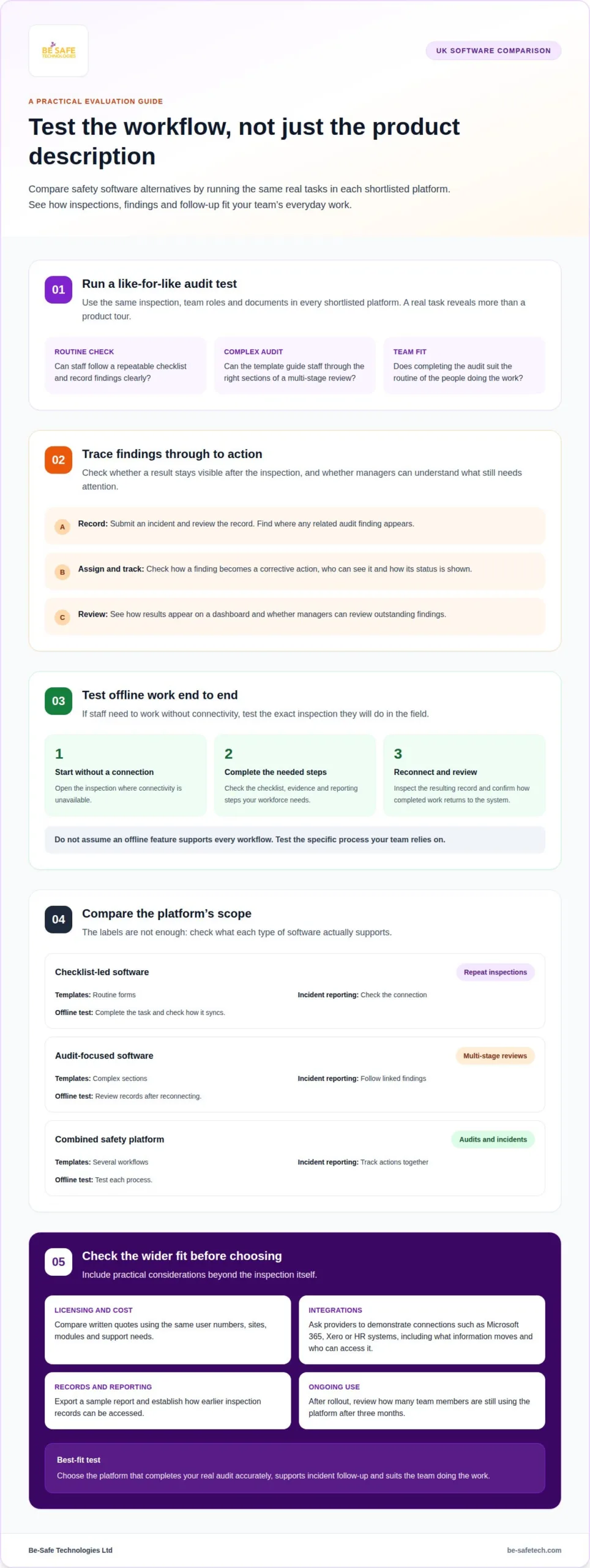
Audit and inspection workflows differ in how they guide staff from a checklist to recorded findings. Some tools focus on repeatable forms; others connect inspections with incident reports and action tracking. Run the same inspection in each shortlisted platform, using the same team roles and documents. You will see whether completing an audit fits your workforce’s routine.
During the demonstration, check how results appear on a dashboard and whether managers can review outstanding findings. Software cannot replace the judgement needed to manage a site, so look for a workflow that supports informed decisions rather than making them automatically.
Flexible templates and complex audits
Templates shape how well a platform supports routine checks and complex audits. Check whether staff can follow the right sections, record findings clearly and capture information needed for later review. An equipment check may need a different structure from a multi-stage site audit, so test both with the people who complete them.
A software-generated RAMS document is not automatically suitable for every job. Similarly, a vendor’s reference to UK legislation does not amount to legal approval of your organisation’s procedures. Ask for a demonstration using your own documents and team roles, not just a generic product tour.
Incident reporting needs a clear route from the initial record to follow-up. Test a practical example: submit an incident, review the record and identify where any related audit finding appears. This shows whether reporting and inspections work as connected processes or separate tasks. Check how the dashboard supports tracking, including who can see each item and its current status.
If offline mobile audits matter, test the same inspection where connectivity is unavailable, then reconnect and review the resulting record. This shows how the app behaves during an interruption and whether staff can continue their planned task. Do not assume an offline feature supports every workflow; test the checklist, evidence and reporting steps your workforce needs.
| Option | Audit workflow | Templates | Incident reporting | Offline test |
|---|---|---|---|---|
| Checklist-led software | Repeat inspections | Routine forms | Check connection | Complete and sync |
| Audit-focused software | Multi-stage reviews | Complex sections | Follow linked findings | Review records after reconnecting |
| Combined safety platform | Audits and incidents | Several workflows | Track actions together | Test each process |
After rollout, review how many team members are still using the platform after three months. Ongoing use can indicate whether the workflow fits their daily work.
Choose the platform that completes your real audit accurately, supports incident follow-up and suits the team doing the work.
Product descriptions cannot establish how well a platform will work in your environment. Test the same task with every shortlisted provider and compare the actual workflows, not just the claims on sales pages.
Alternative health and safety software providers
Health and safety platforms vary in scope, integrations, reporting and fit with existing operations. Compare each option against the work your team needs to manage, rather than relying on the product category alone.
Integration with Microsoft 365, Xero, HR systems and other UK business software varies by platform and setup. Treat each connection as a workflow to demonstrate, including what information moves and who can access it.
Software can help organise health and safety records, but it cannot establish that an organisation meets HSE expectations or UK GDPR obligations. A vendor’s reference to legislation is not legal approval of your procedures.
All-in-one EHS software
An all-in-one EHS platform brings several safety processes together in one software environment. This can suit organisations that want to connect audits, incident records, risk assessments and action tracking. A narrower workplace safety tool may focus on inspections or incident reporting, while an integrated platform aims to link those tasks.
Compare the actual scope, not the “all-in-one” label. Map a typical event, such as a reported hazard, through recording, assignment and management review. Note which steps happen in the platform and which still rely on spreadsheets, email or separate HR software.
For a fair comparison, ask shortlisted providers for written quotes using the same user numbers, sites, modules and support needs. Pricing, included features and support levels can vary by plan and change over time. Product descriptions alone cannot show how well a platform will work in your environment.
Use a short demonstration to assess everyday tasks: assign a finding, locate its record and review its status. Repeat the exercise with your own roles and documents. This shows whether the software suits your workforce and makes responsibilities clear across operations.
Ratings and selection criteria
Review ratings can reveal common themes, but a score alone cannot show whether a platform fits your organisation. Read comments about relevant tasks, such as assigning actions or finding past records, and distinguish them from feedback about onboarding or customer support.
Build a selection list around workflow fit, integrations, reporting, user access and total quoted cost. Ask each provider to demonstrate the same scenario, such as an inspection finding assigned to a site manager and reviewed by a safety lead. Compare the steps and resulting records, not just the presentation.
For Microsoft 365 or Xero connections, ask the provider to show the required data moving through the intended process. Repeat this with HR software if staff details or roles need to inform access. A clear demonstration can expose manual work, duplicate entry or gaps before a decision.
Choose an alternative by matching its demonstrated features and quoted plan to your team’s actual health and safety operations.
Inspection checklists, reports and corrective actions
A useful inspection record makes the finding clear and supports follow-up. Compare how each platform connects checklists, supporting documents, reports and corrective actions. For example, a damaged guardrail should be recorded, reviewed, assigned and tracked through to completion.
Start with a familiar checklist, such as a workplace housekeeping inspection. Check whether it captures the location, finding, evidence and relevant risk assessment. Then follow the recorded issue into its action workflow. This shows whether staff need to re-enter details or can carry the original record forward.
Corrective action functionality matters when an inspection identifies a problem. Test how a finding is assigned, how its owner sees the task and how a manager follows progress. A clear record should help authorised staff understand the issue and its status without relying on separate email threads or duplicate documents.
Staff, visitors and contractors may need different ways to report hazards or incidents. Compare the access routes for each group instead of assuming everyone needs the same account or permissions. For a contractor’s site visit, test how they could raise a concern and how the responsible manager would receive it.
Contractor reporting also depends on clear responsibility. The platform should make it possible to identify who receives a report and who handles follow-up. During a demonstration, use a visitor’s example, such as a spill near an entrance, and trace the report from submission to action assignment. This can reveal gaps in access or handover.
Reports need to serve the people who review them. Ask to export a sample report and assess its contents, layout and usefulness for a site manager. Check whether it includes key details such as the inspection date, location, recorded findings and action status. These fields help readers interpret the result without searching multiple records.
Test how data leaves the platform, too. Ask whether reports can be exported in formats your team can use, such as PDF or CSV, and whether earlier inspections remain retrievable. Before switching systems, export a sample report, establish who owns the data and confirm the process for retrieving past inspections.
Use these practical checks to compare functionality:
- Complete a checklist and record a sample finding.
- Attach or refer to relevant documents and risk assessment details.
- Assign an action, then view it from the responsible person’s perspective.
- Export a report and retrieve an earlier inspection record.
A connected process should let a manager move from a checklist result to corrective action without losing context. Compare the same example across shortlisted platforms, including reporting routes for staff, visitors and contractors. Choose the option whose records, access and exports support your team’s follow-up process.
Offline functionality
Mobile inspections may take place where a reliable connection is unavailable, such as a basement plant room or remote construction site. Test offline access against the tasks your workforce completes, rather than treating an offline label as proof that every workflow works without a connection.
Use one inspection checklist to compare shortlisted tools, including iAuditor as the familiar reference point. Open the form before entering an area with poor signal, record a sample defect and attach any required evidence. Then close the inspection and check what remains available on the device.
Test each part of the process separately. Can the worker open the checklist, enter answers, save a draft and add notes offline? Does the test also cover photos, signatures or incident reporting? These are distinct functions; success with checklist answers alone does not show that every task works without internet access.
Next, restore the connection and review how the record reaches the central system. Check whether the completed inspection appears, its details remain readable and changes made elsewhere are reconciled. Use a sample finding, such as a blocked fire exit, to trace the record from the mobile device to the manager’s review.
This sequence can reveal practical issues. A record might remain on the device until it reconnects, or staff may need to repeat a step. Compare the actual behaviour during a demonstration. Do not assume offline work syncs immediately or preserves every attachment unless you have tested that specific workflow.
Construction teams can test a realistic scenario: inspect a temporary access route where there is no dependable signal. Have a worker open the relevant checklist, record an obstruction and save the inspection. After connectivity returns, check how the supervisor finds the record and follows up. This tests the whole process, not just the app’s offline screen.
Include device and user conditions in the test. Try the workflow on the mobile devices your inspectors use, with the roles they hold. Confirm that users can find the correct site and form before going offline. A smooth inspection still depends on selecting the right record and giving staff suitable access.
Use a short comparison sheet to capture results:
- Which inspection steps worked without a connection?
- Which evidence or report functions required connectivity?
- What happened after the device reconnected?
- Could a manager locate and track the submitted record?
Choose software based on the complete mobile inspection your team needs, from opening the form to reviewing the returned record. A repeatable test across providers makes differences visible, particularly for remote sites, construction work and other areas with inconsistent connectivity.
Choosing an alternative based on the main workflow
The best-fit solution depends on the safety task your workforce completes most often. A team focused on inspections needs a different daily workflow from one managing incidents, contractor visits or corrective actions. Start with the task that takes the most staff time, creates the most follow-up or relies on disconnected records.
Map that workflow from the first entry to its final review. For example, trace a warehouse hazard from report submission through manager review and action closure. Record who enters information, who assigns responsibility and who needs oversight. This turns a broad software comparison into a practical test of how each platform supports your operations.
Run the same scenario with every shortlisted provider. Use the same team roles, documents and expected outcome, so differences reflect the solution rather than a different demonstration. Note where staff switch screens, repeat information or rely on a spreadsheet. Product descriptions cannot show how well a platform works in your environment; a shared task makes its fit easier to judge.
For an incident-led team, test the path from reporting to investigation and corrective follow-up. For a contractor-led operation, follow a site visit from the initial record to review. For an audit-led team, use a recurring inspection with a finding that requires action. These scenarios reveal whether the platform supports the work staff actually perform, not just the features listed.
Enterprise requirements may include multiple sites, different permissions and management reporting. Include those roles in the demonstration, then trace a finding from the person who records it to the manager who reviews it. This shows whether oversight suits the organisation’s structure or creates extra handovers. A smaller team may prefer a simpler workflow to features it rarely uses.
Use a scorecard to compare the same factors across providers:
- Task fit: Can staff complete the main workflow without unnecessary repetition?
- Ownership: Is it clear who receives and assigns each action?
- Follow-through: Can managers see whether corrective work remains open or is complete?
- Scale: Does the process work across the sites and roles involved?
- Adoption: Review how many team members remain active three months after rollout.
Weight the scorecard around your priorities. If incidents drive the workload, give reporting and follow-up more importance than rarely used audit features. If the team is expanding, include the enterprise roles and sites likely to use the system. The strongest choice supports your main workflow clearly while meeting essential operational needs.
Discuss your safety workflow as a practical starting point for assessing the right software fit.
Request written quotes based on the same user numbers, sites, modules and support needs, so you can compare costs fairly.
Be-Safe Technologies: Compliance Genie – SaaS health and safety software
Be-Safe Technologies Ltd offers Compliance Genie, mobile-first, cloud-based health and safety software for organisations digitising health and safety processes and risk assessments. The platform supports teams looking for a digital way to manage this work.
For workflows centred on external workers, Contractor Genie is SaaS contractor management software that manages contractors and their site visits in one place. The right option depends on whether your priority is health and safety processes, contractor management or both.
To discuss your team’s requirements, contact Be-Safe Technologies Ltd.
Make your next software decision with confidence
If you are comparing SafetyCulture alternatives in the UK, turn your shortlist into a practical decision. Choose the workflow that matters most, then define what a successful outcome looks like for the people using it and the managers overseeing it. This keeps the decision grounded in daily work, not just feature lists.
As you assess SafetyCulture alternatives in the UK, involve the relevant team roles and agree which trade-offs matter most. A platform that suits one organisation may not suit another, because site processes, responsibilities and reporting needs differ. Focus on fit, usability and the work your team needs to manage as it develops.
If you’re ready to discuss how your requirements map to health and safety software or contractor management software, contact Be-Safe Technologies Ltd. A clear decision-making process is a practical step towards more organised safety operations.
Frequently Asked Questions
How Do Costs and Licensing Models Differ for Growing Teams?
Licensing models affect how costs change as a team grows. A team-based fee may change less with each new starter, while per-user pricing can increase as headcount grows. Site-based or modular plans can also affect the total. Model likely changes, such as adding users, sites or functions, and review how each would affect the quote.
Which UK inspection and compliance platforms support offline use and mobile apps?
Mobile apps and offline capabilities vary by platform and task. A tool may support mobile inspections without supporting every action offline. If your maintenance team works in a plant room, test whether staff can access current forms, save records and retain evidence without a connection. Also consider how app permissions work and how conflicting edits are handled after devices reconnect.
Which SafetyCulture alternatives offer digital checklists, audits and incident reporting?
Checklist-led software supports repeat inspections, audit-focused software handles multi-stage reviews, and combined safety platforms can connect audits with incidents. Test the same workflow with each shortlisted provider.
How easy is it to migrate checklists, users and inspection data from SafetyCulture?
Before switching, export a sample report, establish who owns the data and confirm how to retrieve earlier inspections. Test whether checklists and user records can be migrated as part of your transition plan.
What are the main drawbacks and risks of switching from SafetyCulture to another platform?
A new platform may not fit your team’s workflows, and providers’ pricing, features and support arrangements differ. Before switching, test the mobile tasks you need and confirm how to retrieve past records. Software supports site management but cannot replace professional judgement or provide legal approval of your procedures.